Workflow
DDM includes a workflow module for approval processes. Workflows are designed in BPMN, deployed, and then run on demand or on a schedule. The pages are under Settings > Workflow Inbox and Settings > Workflow Settings.
Workflow Inbox
My Tasks
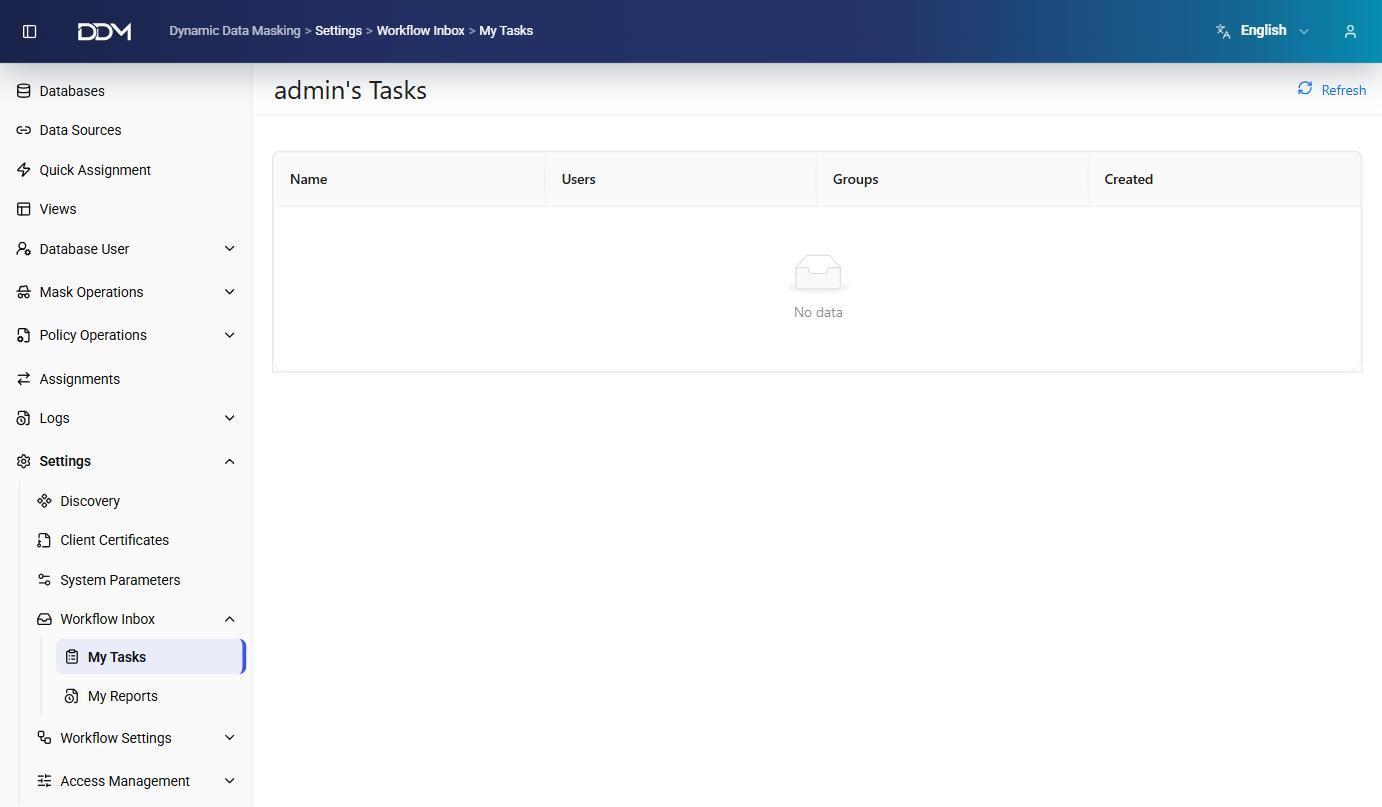
The My Tasks page lists the workflow tasks assigned to the signed-in user. Tasks waiting for approval or action appear here. For example, if a masking request or access request follows an approval workflow, the task appears in the user's list.
| Field | Description |
|---|---|
| Name | Name of the task or process step. |
| Users | User assigned to the task. |
| Groups | User group assigned to the task. |
| Created | Date and time when the task was created. |
- Click a task to see its details or complete the required action.
- Click Refresh to update the list.
My Reports
The My Reports page shows the workflow processes that the current user started or is assigned to, so their progress and state can be followed.
- Use the Search box to find a report.
- Click Refresh to update the list.
Workflow Settings
Process Cockpit
The Process Cockpit page shows deployed process definitions. After a deployment is selected, the page shows its process definition and BPMN diagram.
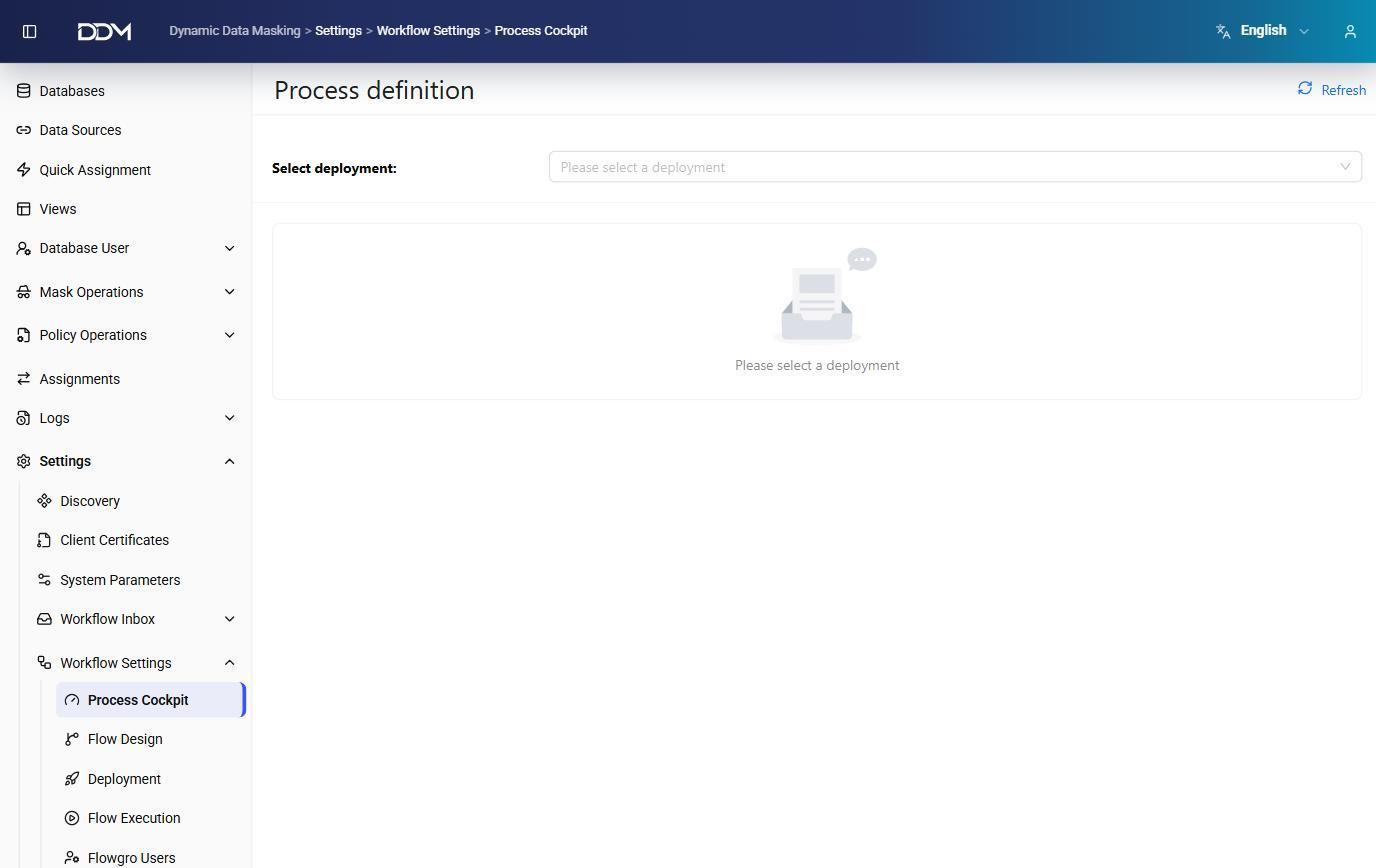
1. Select a deployment from the Select Deployment list.
2. Review the process definition and workflow diagram.
Click Refresh to reload the deployment list.
Flow Design
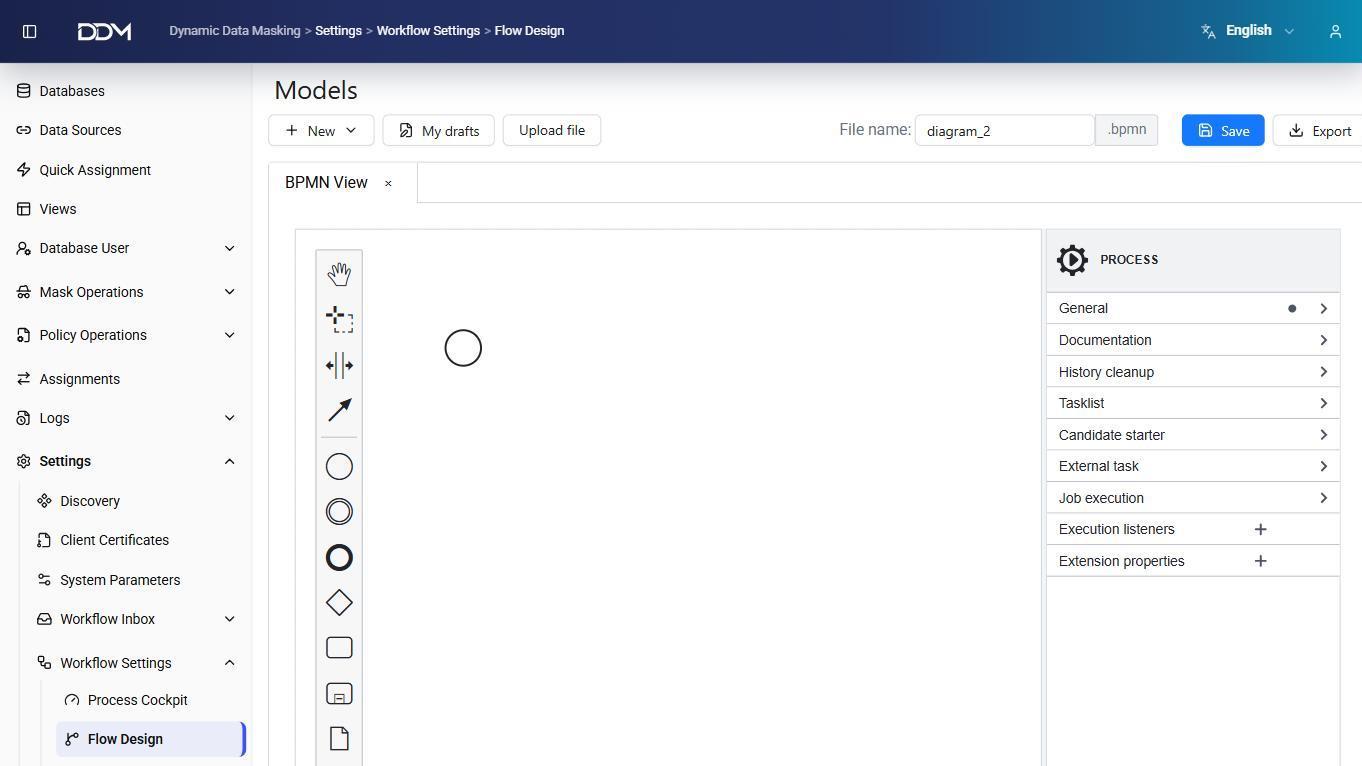
The Flow Design page is a BPMN editor for creating and editing workflows with events, tasks, gateways, and connectors.
| Component | Description |
|---|---|
| Palette | BPMN elements, such as events, tasks, gateways, and connectors, that can be added to the diagram. |
| Properties | Settings of the selected element, including General, Documentation, Tasklist, External Task, and Job Execution. |
| File Name | Name of the diagram. Files are saved with the .bpmn extension. |
- Click + New to create a diagram.
- Drag elements from the palette onto the canvas and set their properties in the Properties pane.
- Click Save to save the workflow.
- Click Export to export the BPMN file.
- Click Upload File to import an existing BPMN diagram.
- Click My Drafts to open saved drafts.
Deployment
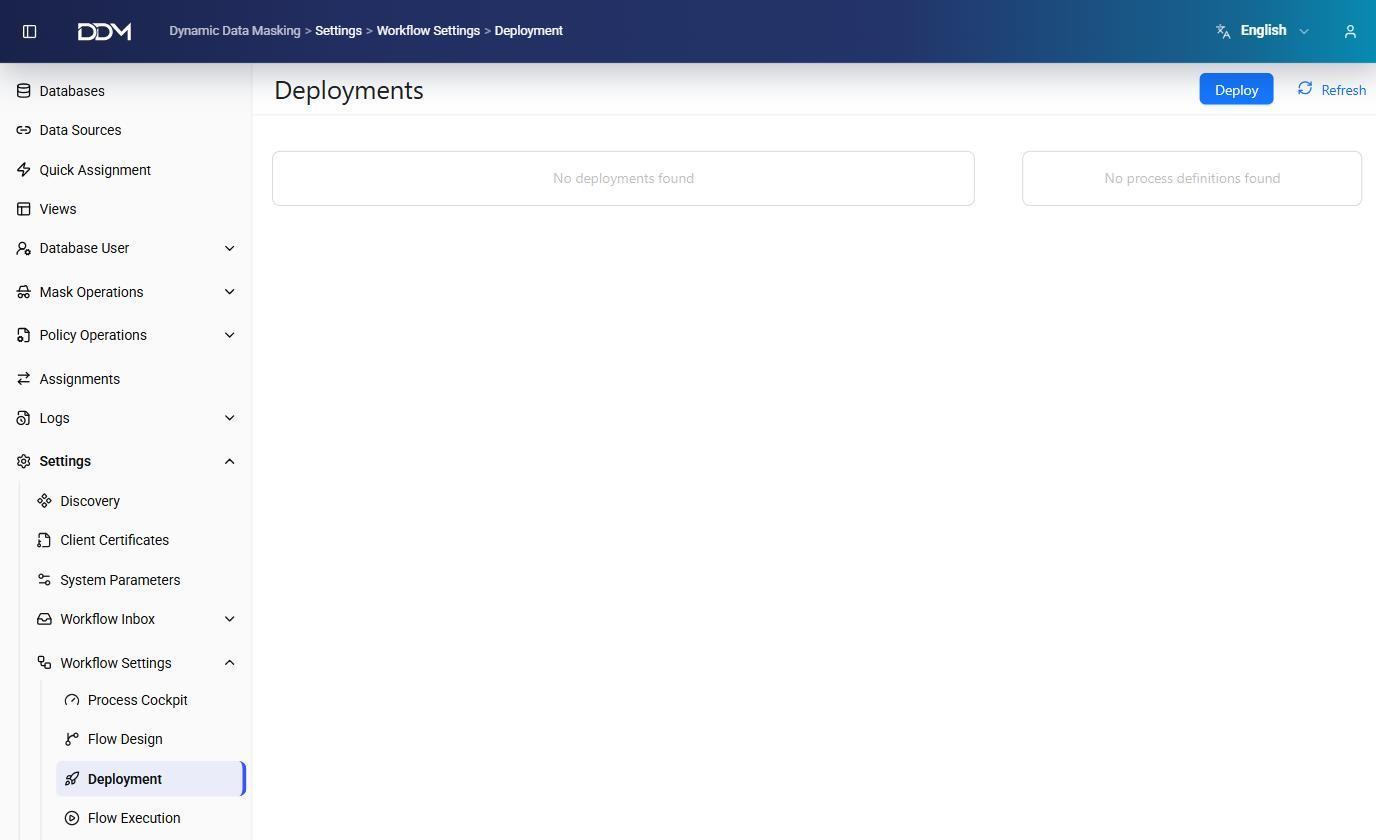
The Deployment page deploys the workflows created in Flow Design. A workflow must be deployed before it can run.
| Component | Description |
|---|---|
| Deployments | Available deployments. |
| Process Definitions | Process definitions in the selected deployment. |
- Click Deploy to deploy a workflow.
- Click Refresh to reload the list.
Flow Execution
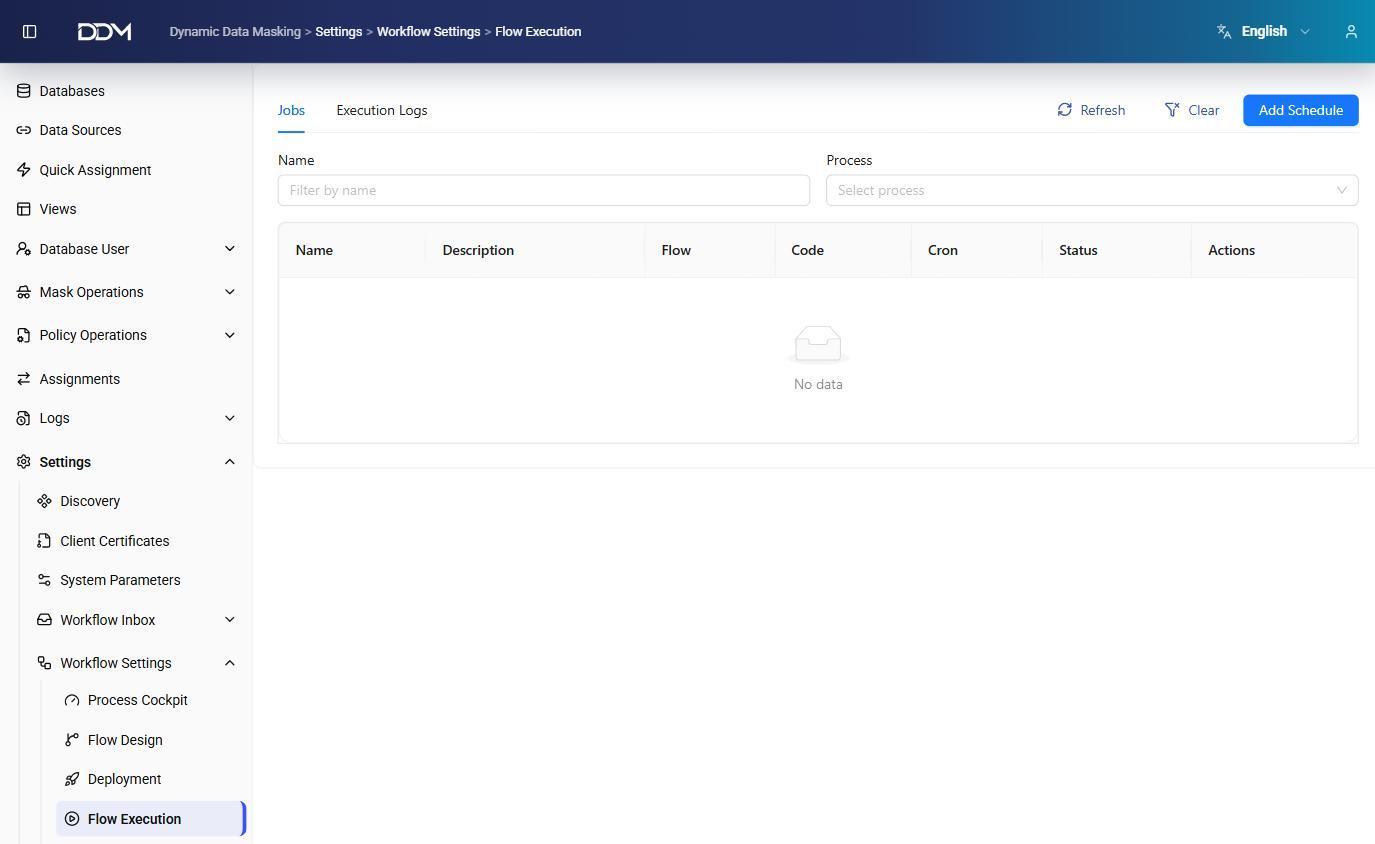
The Flow Execution page schedules workflows and shows their execution history. It has two tabs.
Jobs
Configures scheduled workflow jobs.
| Field | Description |
|---|---|
| Name | Name of the job. |
| Description | Description of the job. |
| Flow | Workflow the job runs. |
| Code | Unique job identifier. |
| Cron | Cron expression that sets the schedule. |
| Status | Current state of the job. |
| Actions | Actions available for the job. |
- Click Add Schedule to create a job, then select the workflow and schedule.
- Use the Name and Process filters to find jobs.
Execution Logs
Shows the execution history of workflows.
| Field | Description |
|---|---|
| Name | Name of the executed job. |
| Start Time | Date and time when execution started. |
| Duration | Total execution time. |
| Flow | Executed workflow. |
| Trigger | What started the execution. |
| Status | Execution state. |
History can be filtered by Job, Date Range, or Status.
Flowgro Users
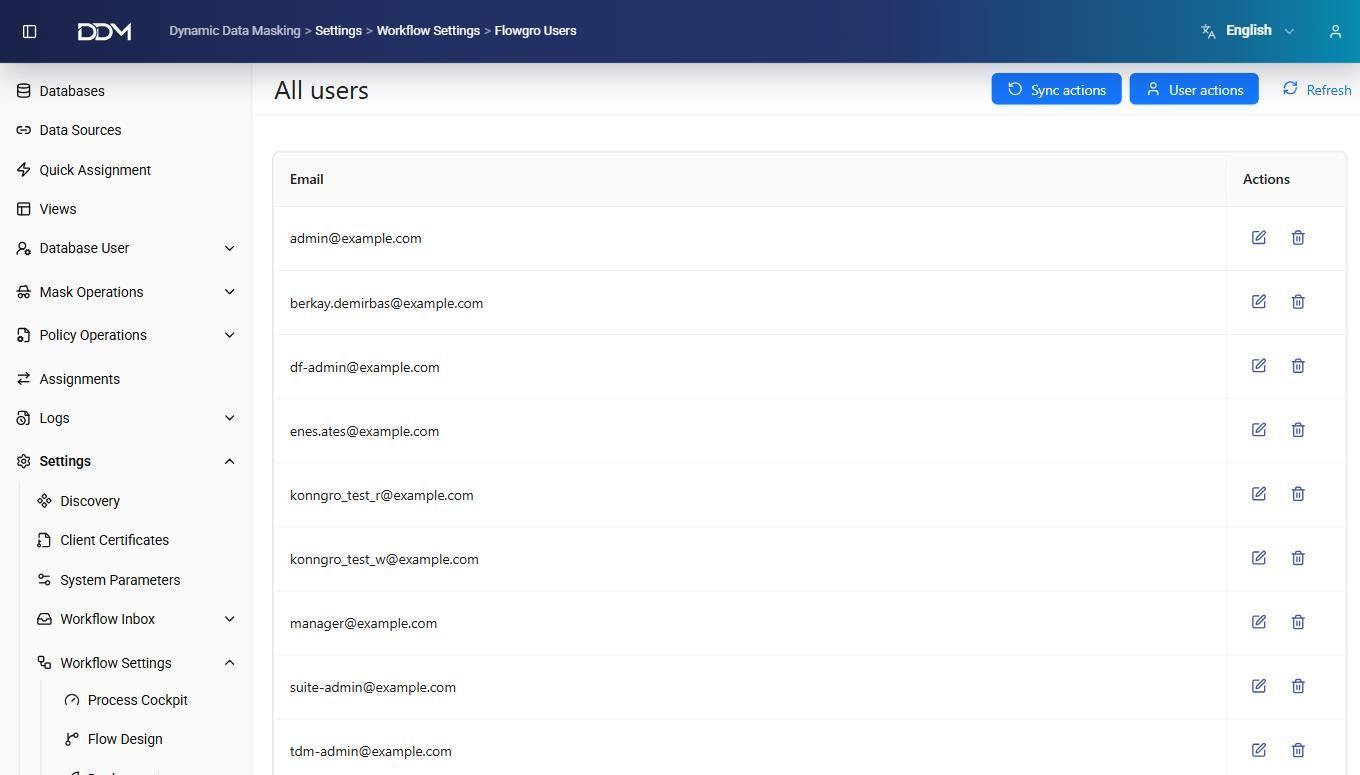
The Flowgro Users page manages the users of the workflow module. These users can take part in workflow execution, approval steps, and task assignments.
| Field | Description |
|---|---|
| Email address of the workflow user. | |
| Actions | Edit or delete the user. |
- Click Sync Actions to synchronize workflow users.
- Use User Actions for user management tasks.
- Click Edit or Delete to update or remove a user.
Flowgro Reports
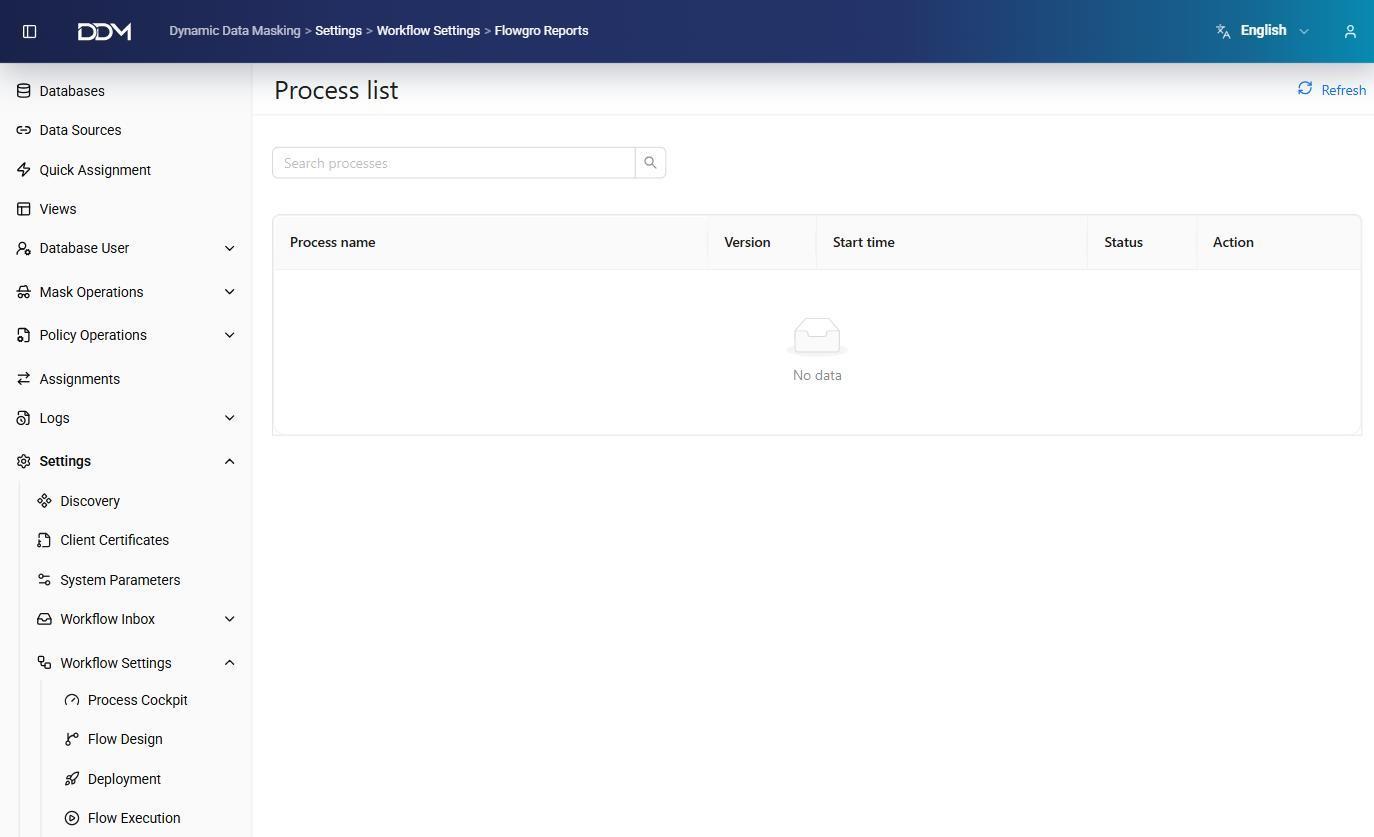
The Flowgro Reports page gives an overview of running and completed workflow instances across the system.
| Field | Description |
|---|---|
| Process Name | Name of the process. |
| Version | Version of the process definition. |
| Start Time | Date and time when the process started. |
| Status | Current state of the process. |
| Actions | Shows the details of the process. |
- Use the Search Processes box to find instances.
- Click Refresh to update the list.